
Zebra Printer Media Calibration: When to Do It, How to Do It, and Why Skipping It Causes Most Feeding Problems
Posted by The ZPS Store on May 14th 2026
By The ZPS Store | Zebra Printer Troubleshooting | Media Calibration Guide
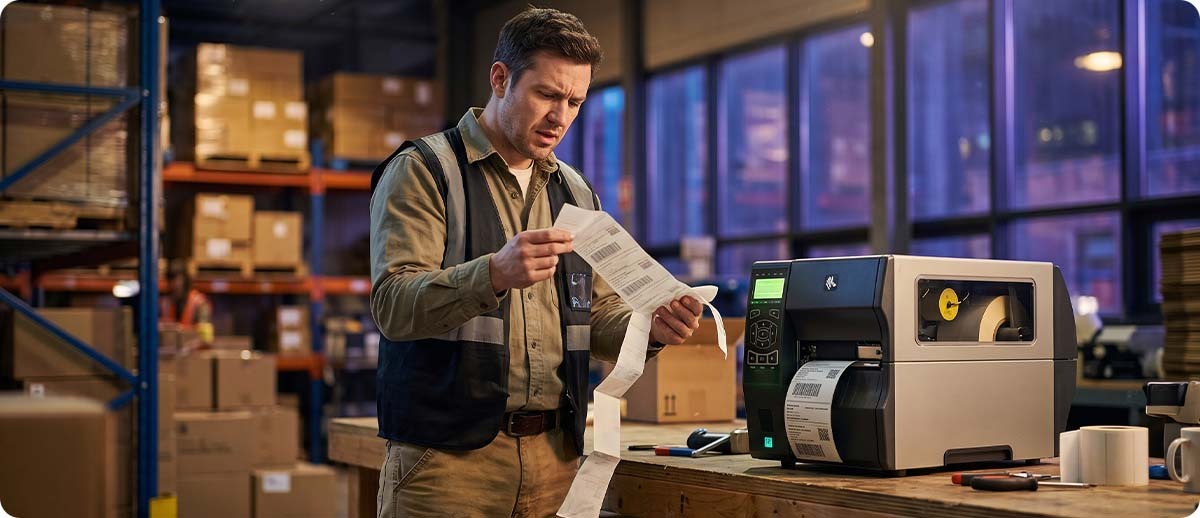
Media calibration is the process of letting the printer's sensors measure the label media currently loaded — detecting label gaps, black marks, or notches, measuring label length, and setting the sensor thresholds that govern how the printer knows where one label ends and the next begins. When those measurements are accurate, labels feed correctly, print starts at the right position, and the printer does not produce false Media Out errors. When they are inaccurate or outdated, the printer behaves in ways that look like hardware failures but are actually just configuration problems.
The most common trigger for miscalibration is a media change. Loading a new roll of labels that is a different size or from a different supplier changes the gap width, label length, and liner thickness that the printer is expecting to see. The calibration data stored from the previous roll is now wrong. The printer does not automatically update it when you load new media — you have to tell it to recalibrate. Many operations never do this after the initial printer setup, and the calibration data they are running on may be months or years out of date.
What Media Calibration Actually Does
Every Zebra thermal printer has at least one media sensor positioned beneath the label path. On gap-sensing media (standard labels on a liner with visible gaps between labels), this is a transmissive sensor that shines a light through the liner and detects the difference in opacity between the gap (where the liner is thin) and the label (where the facestock adds thickness). On black-mark media, a reflective sensor detects the black mark or notch printed on the liner.
During calibration, the printer feeds a set number of labels through the sensor path and measures the sensor output values at the label face and at the gap or mark. It uses those measurements to set threshold values that determine, during normal printing, whether the sensor reading at any given moment indicates a gap or a label. It also measures the distance between gaps to determine the label length and stores that measurement for feed and position control.
When the thresholds are set correctly for the actual media loaded, the printer feeds accurately. When the thresholds are stale from a previous media batch or incorrect from a factory default, the printer either misses gaps (producing double-feeds and printed labels that span two label lengths) or detects gaps where there are none (producing short feeds and labels printed in the wrong position). Both symptoms look like hardware problems. Both are usually calibration problems.
When to Run Media Calibration
Zebra's own documentation specifies the following trigger conditions for running calibration. Run it any time one of these conditions applies.
Any time you change the media type or size. This is the most important and most consistently missed trigger. Loading a 4x6 label after running 4x2 labels, switching from gap-sensing to black-mark media, or changing from one supplier's label stock to another all require calibration. The new roll has different physical characteristics and the printer needs to measure them.
When printing issues appear. Zebra explicitly lists these symptoms as calibration triggers: skipped labels, vertical image drift where print gradually moves up or down on the label, and Media Out errors when media is loaded and confirmed present. If any of these symptoms appear without an obvious physical cause, calibration is the correct first response before any other troubleshooting.
After a factory reset. A factory reset clears all stored printer settings including calibration data. After any reset, the printer has no media measurements and must be recalibrated before it can feed accurately.
After a firmware update. Firmware updates can modify sensor processing parameters in ways that affect how existing calibration data is interpreted. Running calibration after a firmware update ensures the sensor thresholds are correctly set under the new firmware version.
When a printer has been idle for an extended period. Printers that have been unpowered or unused for extended periods sometimes accumulate dust or debris on the media sensor, shifting its baseline reading enough to cause feeding problems on the next print run. Calibration after a long idle period catches this before it affects production labels.
The Three Types of Calibration on Zebra Printers
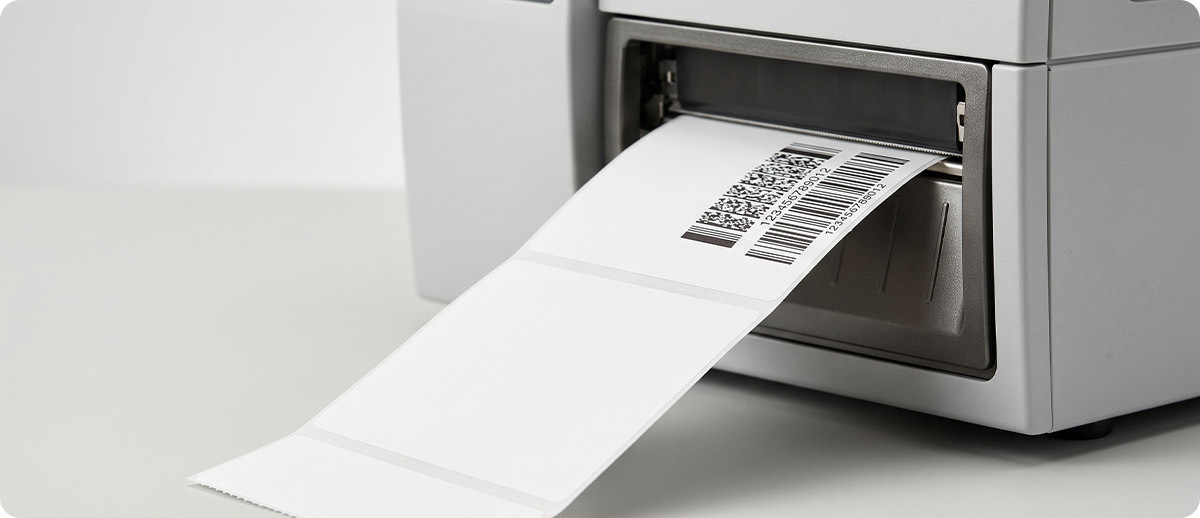
Zebra uses three different calibration approaches depending on the printer platform and the severity of the calibration problem. Understanding which one to use saves time and avoids running a more complex procedure when a simpler one will resolve the issue.
SmartCal (Desktop Printers — ZD411, ZD421, ZD611, ZD621)
SmartCal is Zebra's automated calibration routine for the ZD desktop printer family. It automatically determines the media sensing type — gap, black mark, or continuous — and measures the label characteristics without requiring any user input beyond initiating the sequence. SmartCal is the correct starting point for any media feeding problem on a ZD-series printer and resolves the majority of calibration issues in a single run.
During SmartCal, the printer feeds several labels through the sensor path, collects measurements, sets sensor thresholds, determines label length, and returns to Ready status. The entire process takes 15 to 30 seconds. No labels are wasted in large quantities and no user intervention is required during the run.
Full Calibrate (Industrial Printers — ZT231, ZT411, ZT421, ZT610, ZT620)
Full Calibrate on industrial printers adjusts sensor gain levels and thresholds, determines label length, and feeds media to the next web. This is the complete sensor recalibration — it resets everything from the ground up. Use Full Calibrate any time you change media type or size, after a factory reset, or when feeding problems persist after a Short Cal. It takes slightly longer than Short Cal and uses a few more labels during the process.
Short Cal (Industrial Printers)
Short Cal sets media and web thresholds without adjusting sensor gain, then determines label length. It is faster than Full Calibrate and uses fewer labels. Short Cal is appropriate when the same media type is being loaded but from a new roll, or when minor feeding drift develops during a long production run. It is not appropriate when switching between fundamentally different media types, because it does not reset the sensor gain that determines how sensitive the sensor is to the media characteristics.
How to Run Calibration: Step by Step for Each Platform
ZD421 / ZD621 / ZD411 / ZD611 — Button-Only Models
Make sure media is loaded, the printer cover is closed, and the printer is powered on and in Ready state. Press and hold the Feed button and the Cancel button simultaneously for approximately two seconds. The printer will begin feeding labels through the sensor path. It feeds and measures several labels automatically. When complete, the printer returns to Ready status. The SmartCal is complete. Run a test label to confirm correct feeding and print position.
If SmartCal does not resolve the feeding problem, manual calibration in Advanced Mode is the next step. With media loaded and the printer in Ready state, press Pause and Cancel simultaneously until the Status indicator goes solid amber. The printer enters Advanced Mode. Press Pause while the Status indicator is yellow. The Supplies indicator flashes yellow, then the Pause indicator flashes. Open the printer and verify the media sensor is positioned correctly for your media type — center position for gap sensing, adjusted for black-mark or notch media. Follow the printer's indicator sequence to complete the manual calibration cycle.
ZD421 / ZD621 — Color Touchscreen Models
On touchscreen ZD-series printers, calibration is accessed through the menu system. With media loaded and the cover closed, navigate from the Home screen to the Print menu, then select Sensors. Select Run SmartCal. The printer runs the automated calibration sequence and returns to Ready status. For manual calibration on touchscreen models, navigate to Print, then Sensors, then Manual Calibration and follow the on-screen prompts.
ZT411 / ZT421 — Manual Calibration (Feed Button Method)
With media loaded and the printer powered on, press and hold the Feed button. Continue holding it while watching the green status light. The light will flash in groups: once, pause, twice, pause, continuing through progressively larger groups. When the flash groups reach seven flashes, release the Feed button. Then press the Feed button once more to feed one blank label. This completes the manual calibration cycle. The printer returns to Ready status. Run a test label to confirm.
ZT411 / ZT421 — Calibration via Touchscreen Menu
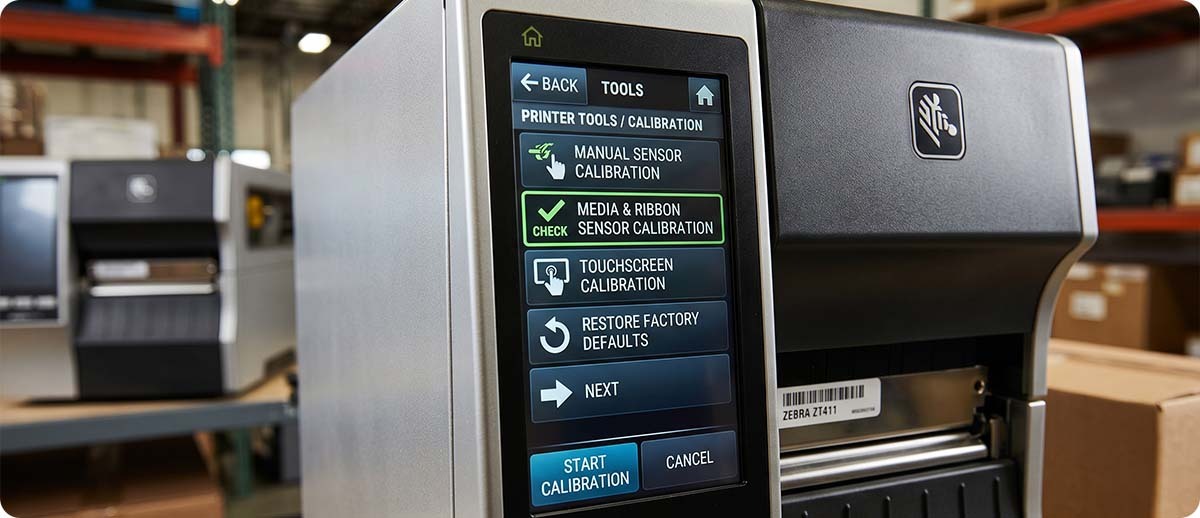
On the ZT411 and ZT421 color touchscreen, navigate to the Home menu and select Tools. Select Print Quality, then select Media and Ribbon Calibration. Select Calibrate (for Full Calibrate) or Short Cal depending on the situation. The printer feeds several labels, measures the media, sets the thresholds, and returns to Ready. You can also configure the printer to run calibration automatically on power-up or when the print head is closed by adjusting the POWER UP ACTION or HEAD CLOSE ACTION settings to CALIBRATE or SHORT CAL.
ZT231 — Manual Calibration
With media loaded, press and hold Pause, Feed, and Cancel simultaneously for approximately two seconds until the printer enters calibration mode. The touchscreen display guides you through the remaining steps. Use the Start Calibration or Next button to advance through the process. The printer scans the media to detect gaps, marks, or continuous stock, sets the sensor thresholds, and measures the label length. When complete, the printer returns to Ready status.
ZT610 / ZT620 — Calibration via Touchscreen Menu
On ZT610 and ZT620 printers, access calibration through the touchscreen menu. Navigate to Home, then Tools, then Print Quality. Select Calibrate Media or Media and Ribbon Calibration depending on the firmware version. Select Full Calibrate or Short Cal as appropriate. The printer runs the calibration sequence and returns to Ready. The same POWER UP ACTION and HEAD CLOSE ACTION configuration options available on the ZT411 apply to the ZT610 and ZT620 for automatic calibration behavior.
The Calibration Quick Reference by Platform
| Printer | Quickest Method | Key Sequence or Menu Path |
|---|---|---|
| ZD421/ZD621/ZD411/ZD611 (button-only) | SmartCal | Hold Feed + Cancel simultaneously for 2 seconds |
| ZD421/ZD621 (color touchscreen) | SmartCal via menu | Home → Print → Sensors → Run SmartCal |
| ZT411 / ZT421 | Manual (Feed button) | Hold Feed until 7 flashes, release, press Feed once |
| ZT411 / ZT421 | Full Calibrate via menu | Home → Tools → Print Quality → Media and Ribbon Calibration → Calibrate |
| ZT231 | Manual calibration | Hold Pause + Feed + Cancel for 2 seconds, follow display prompts |
| ZT610 / ZT620 | Full Calibrate via menu | Home → Tools → Print Quality → Calibrate Media |
When Calibration Does Not Fix the Problem
Calibration resolves the majority of feeding problems but not all of them. If you have run a full calibration correctly and the feeding problem persists, one of the following is the more likely cause.
The media sensor is dirty or obstructed. The transmissive or reflective sensor that calibration measures through cannot produce accurate readings if it has debris, adhesive residue, or paper dust on its surface. A dirty sensor produces inconsistent readings that calibration cannot compensate for. Clean the sensor with a dry cotton swab or a gentle IPA wipe and run calibration again. On ZD-series printers the sensor is typically visible below the label path when the cover is open. On industrial printers it is positioned on the media guide assembly.
The media sensor is positioned incorrectly for the media type. Most Zebra printers have an adjustable media sensor that slides to different positions across the label width. For standard gap-sensing media, the sensor should be centered on the label width to detect the gap cleanly. For media with a narrow gap, the sensor may need to be positioned toward the label edge where the gap is more reliably detected. For black-mark media, the sensor needs to be positioned over the black mark location on the liner. If the sensor is in the wrong position for the media being used, calibration will produce incorrect threshold values regardless of how many times it is run.
The wrong sensing mode is selected in settings. The printer has to be set to the correct sensing mode for the media type being used. Gap sensing and black-mark sensing are different modes that use different sensor elements. Running calibration in gap mode on black-mark media will not produce correct results because the printer is not using the appropriate sensor. Verify the Media Type setting in the printer menu matches the actual media being used before running calibration.
The label gap is too small to detect reliably. Gap-sensing calibration requires a minimum gap width that the sensor can reliably distinguish from the label face. Labels with very small gaps, typically under 0.1 inches, may produce inconsistent calibration results because the sensor reading difference between the label and the gap is too small to set a reliable threshold. If you are running labels with unusually small gaps and calibration does not produce stable results, contact your label supplier to verify the gap specification.
Continuous media without the Media Type set to Continuous. Continuous roll media has no gaps or marks for the sensor to detect. Running calibration on continuous media in gap-sensing mode will produce incorrect results because the printer never finds a gap. Set the Media Type in the printer settings to Continuous before loading continuous stock and the feeding behavior will be correct without requiring calibration against gap positions that do not exist.
Frequently Asked Questions: Zebra Printer Calibration
How many labels does calibration use up?
SmartCal on ZD-series printers typically feeds 3 to 5 labels during the calibration cycle. Manual calibration on industrial ZT-series printers uses a similar number. Full Calibrate on industrial printers may feed slightly more labels as it adjusts sensor gain in addition to setting thresholds. In any case, calibration uses a small enough number of labels that media waste is not a meaningful concern even when calibration is run multiple times to resolve a stubborn feeding problem.
Should I run calibration every time I load a new roll of the same label?
For most operations running the same label size and type consistently, calibration at every roll change is not necessary. The calibration data from the previous roll of the same label remains valid because the physical characteristics of the media are the same. However, if you notice any feeding drift developing over time or across rolls, a Short Cal on industrial printers or a SmartCal on desktop printers will refresh the thresholds without a full sensor recalibration. If you switch to a label from a different supplier or a different batch specification, running calibration is the correct practice even if the nominal label size is the same.
My printer shows Media Out but I can see labels are loaded. Is this a calibration problem?
This is one of the most common calibration symptoms and the one most often misdiagnosed as a sensor failure. When calibration thresholds are stale or incorrect, the printer may read the label face as a gap or vice versa, producing continuous Media Out errors even though media is clearly present. Run a SmartCal or Full Calibrate before concluding that the sensor has failed. If the Media Out error persists after a correct calibration on confirmed-good media, then sensor cleaning or sensor failure becomes the more likely cause. The Zebra sensor errors documentation confirms that calibration followed by a factory default resolves this error the large majority of the time without any hardware replacement.
Can I set a Zebra industrial printer to calibrate automatically every time I load media?
Yes. The POWER UP ACTION and HEAD CLOSE ACTION settings on ZT-series industrial printers control what the printer does automatically on power-up and when the print head is closed after loading media. Setting HEAD CLOSE ACTION to CALIBRATE tells the printer to run a Full Calibrate automatically every time the head is closed, which effectively means every time media is loaded. Setting it to SHORT CAL runs a shorter calibration cycle. For operations that frequently change media and want calibration to happen automatically without any operator action, this is a useful configuration. Access these settings through the printer's touchscreen menu under Tools or through Zebra Setup Utilities from a connected PC.
If you have run calibration and the feeding problem persists, or if you want to make sure your printer and media are correctly matched before a high-volume print run, our team can help you work through the diagnosis. We carry the full range of Zebra-certified label media that calibrates reliably with every Zebra printer platform. Fill out the form below and let's get your printer feeding correctly.