
Zebra Printer Darkness Settings: The One Adjustment That Fixes Most Print Quality Problems
Posted by The ZPS Store on May 13th 2026
By The ZPS Store | Zebra Printer Troubleshooting | Print Quality Guide
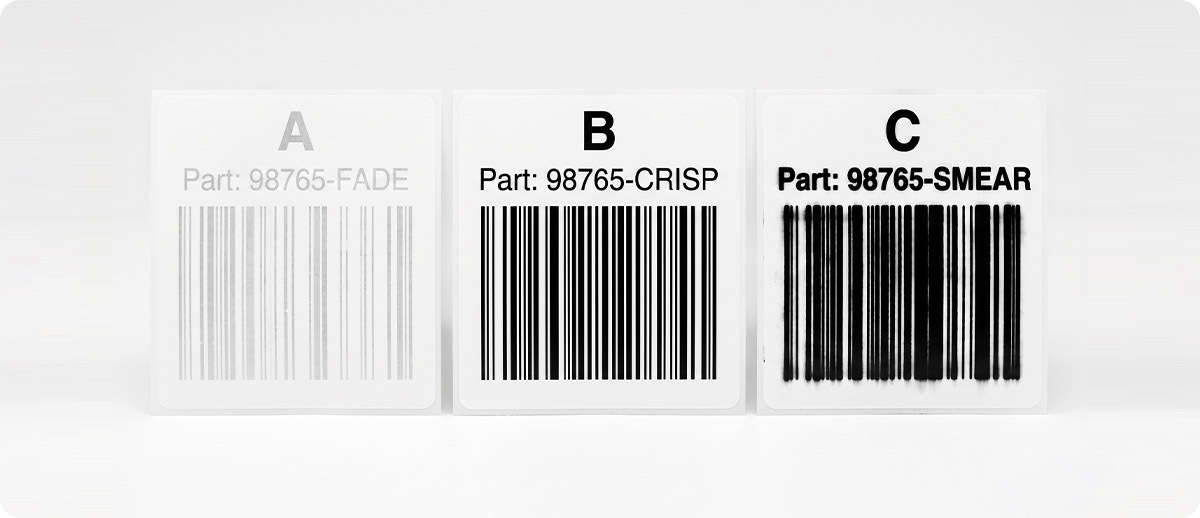
The darkness setting is sometimes called print density, print tone, or print temperature depending on where you are accessing it, but it refers to the same physical parameter: how long and how intensely each heating element in the printhead fires per dot. At the right level, the label image is sharp, barcode bars have clean edges, and solid fill areas are complete without bleeding into adjacent spaces. Too high and the image bleeds, barcode bars fill in and merge, and the ribbon can burn through or transfer ink onto the platen roller. Too low and the image is faint, barcodes may fail to scan on the first pass, and fine text breaks apart into gaps.
Zebra's own guidance on this is direct: set darkness to the lowest setting that provides good print quality. The reason for that specific direction is important. Running at the minimum effective darkness extends printhead life, reduces ribbon consumption waste, and prevents the thermal image bleed that causes barcode scan failures. The temptation when labels look slightly light is to push the darkness higher than necessary, which trades one print quality problem for another and adds wear to the printhead in the process.
What the Darkness Setting Actually Controls
Every Zebra thermal printer has a printhead made up of hundreds of tiny heating elements arranged in a single line across the print width. As media passes under the printhead, these elements fire in precise patterns to create the dots that form the label image. In thermal transfer printing, the heat transfers ink from the ribbon to the label surface. In direct thermal printing, the heat activates the heat-sensitive coating on the label face. In both cases, the darkness setting controls how much energy each element delivers.
Zebra uses a darkness scale from 0.0 to 30.0 across all current industrial and desktop printer platforms, including the ZT231, ZT411, ZT421, ZT510, ZT610, ZT620, ZD421, ZD621, ZE511, and ZE521. Most printers ship from the factory with a default darkness in the range of 10 to 15. The correct setting for your specific operation depends on three variables: the ribbon type, the label facestock, and the print speed. Change any of those three and the optimal darkness setting changes too.
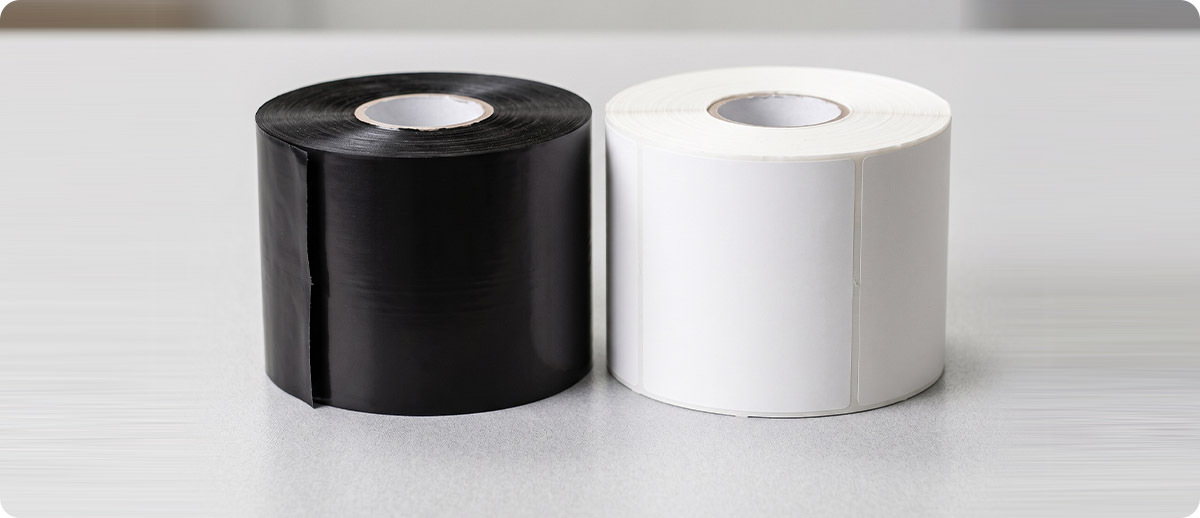
The ribbon interaction is the most significant variable. Wax ribbons transfer ink at lower temperatures than wax-resin ribbons, which transfer at lower temperatures than full resin ribbons. Running a wax ribbon at a darkness setting appropriate for a resin ribbon produces excessive heat that can burn the ribbon backing and leave residue on the printhead. Running a resin ribbon at a darkness setting calibrated for wax produces faint, under-transferred images that fail barcode verification. When you change ribbon types, which happens whenever you switch suppliers, switch ribbon grades, or introduce a new media and ribbon combination, the darkness setting needs to be re-evaluated, not assumed.
Diagnosing the Problem: What Your Labels Are Telling You
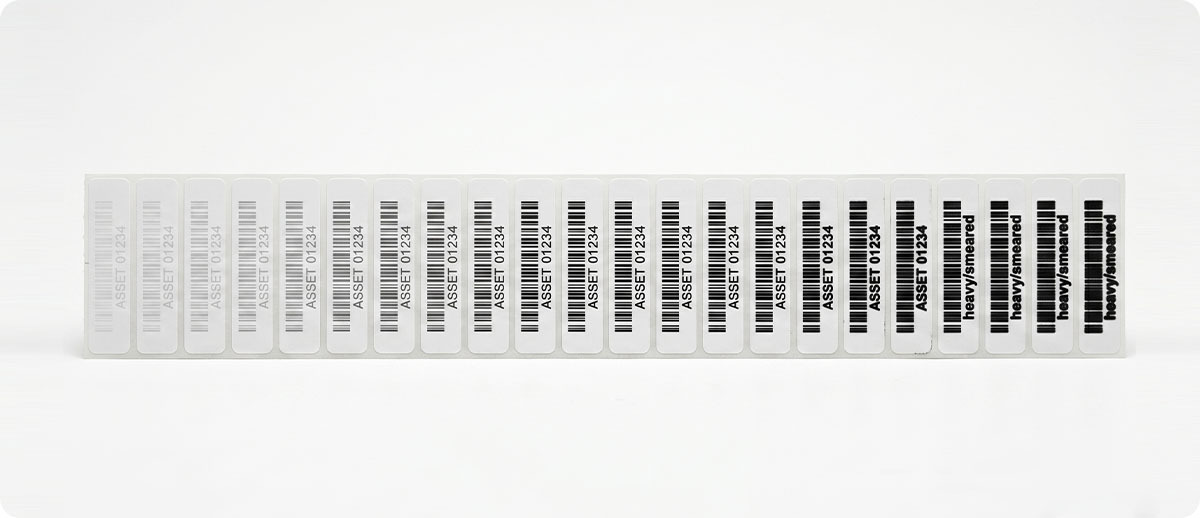
Before adjusting the darkness setting, identify which direction the problem is going. The two failure modes look different and point in opposite directions on the scale.
Signs That Darkness Is Too Low
Labels appear faint or washed out overall. Barcode bars are narrower than they should be and may show gaps or thin spots. Solid black fill areas have visible white speckling through them. Fine text is difficult to read and individual characters may break apart. Barcodes fail on the first scan attempt or require multiple scan attempts to read. Running your fingernail across a thermal transfer label does not smear the image at all, which indicates under-transfer from the ribbon. In direct thermal printing, the darkening reaction is incomplete and the image appears grey rather than black.
Signs That Darkness Is Too High
Labels appear smeared or muddy. Barcode bars are thicker than they should be and the spaces between bars may fill in partially or completely, which is why barcodes that look visually fine still fail to scan reliably. Solid areas bleed into adjacent white spaces. Fine text appears bold or smeared at the edges. In thermal transfer printing, the ribbon backing may show signs of heat damage, including wrinkling or breakage. The printhead may develop ink deposits or glazing from overheated ribbon residue. The image may smear when touched immediately after printing, which indicates the ink is not bonding cleanly to the label surface.
The Diagnostic Test Most Operations Skip
Zebra builds a darkness diagnostic directly into every current printer platform: the FEED Self-Test. Running this test prints a series of labels across a range of darkness settings automatically, so you can see how your specific ribbon and media combination responds to different darkness levels without manually adjusting and printing one at a time.
The FEED Self-Test prints at two speeds, 2 inches per second and 6 inches per second, at darkness settings from three steps below your current setting to three steps above it. Slower speeds apply more heat per dot than faster speeds, which is why the same darkness setting produces slightly darker output at lower print speeds. The test output shows you the barcode quality, fill quality, and fine line definition across that range so you can identify the lowest darkness setting that produces clean, complete output without bleeding.
To run the FEED Self-Test on a touchscreen Zebra printer such as the ZT411, ZT610, ZT231, or ZD621: navigate to Home, then Tools, then Print Quality Report, and the printer runs the test automatically. On button-only Zebra desktop printers such as the ZD411 and entry-level ZD421: press and hold the Feed button while powering on the printer, then release when the status light turns solid. This initiates the self-test and the printer runs the darkness range automatically. The label series that comes out of the printer is your diagnostic read on the correct darkness for your current supplies.
How to Change the Darkness Setting: Every Method, Every Printer Type
There are four ways to change the darkness setting on a Zebra printer depending on how your operation is set up. All four methods change the same underlying parameter. Use whichever method fits your workflow.
Method 1: Touchscreen Menu (ZT411, ZT421, ZT510, ZT610, ZT620, ZT231, ZD621, ZD421 Color Touch)
On any current Zebra industrial or desktop printer with a color touchscreen display, navigate through the onscreen menu. The path varies slightly by model but follows this general structure:
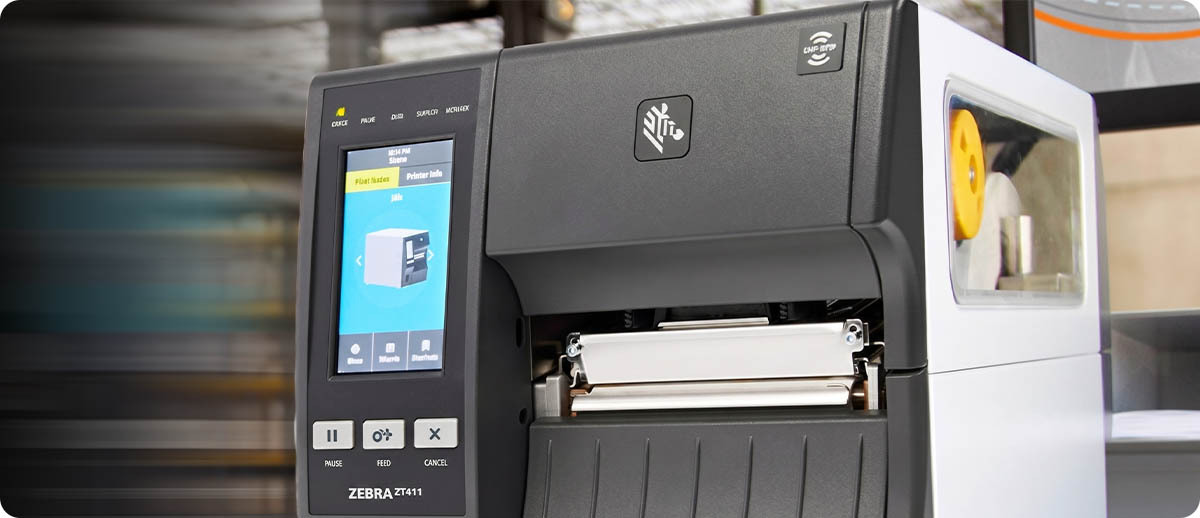
For ZT-series industrial printers (ZT231, ZT411, ZT421, ZT510, ZT610, ZT620): Home menu, then Settings, then Print, then Darkness. Use the plus and minus controls to adjust the value between 0.0 and 30.0, then save. The change takes effect immediately on the next print job.
For ZD-series desktop printers with color touch display (ZD421, ZD621): Home menu, then Settings, then Print, then Print Quality, then Darkness. Same 0.0 to 30.0 range, same immediate effect. The print quality submenu groups darkness alongside speed and related parameters so you can adjust both together if needed.
Method 2: Button-Only Manual Darkness Adjustment (ZD411, ZD421 without Color Touch)
Button-only Zebra desktop printers do not have a menu interface, so darkness adjustment uses a key sequence to enter advanced mode. With media loaded and the printer powered on, press and hold the Pause button for two seconds until all indicator lights flash yellow. Then press the Feed button two times. The Data Transfer indicator light will turn solid yellow, indicating the printer is now in Manual Darkness Adjustment mode. Press the Pause button to print a test label showing the current darkness setting and several barcode patterns. The printer pauses momentarily, then repeats the pattern at the next darkness level. Continue pressing Pause to print through the range until you identify the appropriate setting. To exit manual adjustment mode, press and hold the Pause and Feed buttons simultaneously until the printer cycles.
Method 3: ZPL Commands
For operations managing Zebra printers through label design software, a print management system, or direct ZPL integration, darkness is controlled by two ZPL commands. The ~SD command sets darkness immediately for the current session: ~SD15 sets darkness to 15, ~SD20 sets it to 20, and so on. The ^MD command modifies darkness relative to the stored setting and can be included directly in label format files. The SGD command used via the printer web interface or Zebra Link-OS SDK is print.tone, which accepts the same 0.0 to 30.0 range. For fleet management across multiple printers, pushing a consistent darkness value via ZPL command through your print management system is the most reliable way to ensure all printers in a group maintain the same calibrated setting.
Method 4: Windows Printer Driver
For operations printing from Windows applications through the Zebra Windows driver, the darkness setting is accessible through the printer properties. Open the Windows Control Panel, navigate to Devices and Printers, right-click the Zebra printer, select Printer Properties, then click Preferences in the dialog that opens. The Zebra driver preferences window includes a darkness or density control. Note that darkness set through the Windows driver applies only to jobs sent through that driver from that workstation. If the same printer receives jobs from multiple sources including ZPL direct connections, label management software, or other workstations, those jobs use the darkness stored in the printer's onboard settings rather than the Windows driver value.
The Ribbon and Media Interaction: Why One Setting Does Not Fit All
One of the most common reasons darkness problems recur even after a correct calibration is a supplies change that was not followed by a new darkness calibration. The following table shows the general direction that darkness should move when you change ribbon or media variables. These are directional guides, not exact values. The correct darkness for your specific combination should always be confirmed with a FEED Self-Test.
| Change Made | Direction to Adjust Darkness | Reason |
|---|---|---|
| Switched from wax to wax-resin ribbon | Increase | Wax-resin requires more heat to transfer cleanly than wax |
| Switched from wax-resin to full resin ribbon | Increase | Resin requires the most heat of the three ribbon types |
| Switched from wax-resin to wax ribbon | Decrease | Wax transfers at lower temperatures, excess heat causes smearing |
| Switched from thermal transfer to direct thermal media | Decrease | DT coatings activate at lower temperatures than ribbon transfer |
| Switched to synthetic or polyester label stock | Increase slightly | Synthetic facestock typically requires more heat than coated paper |
| Increased print speed | Increase | Faster speeds reduce heat per dot, requiring more darkness to compensate |
| Decreased print speed | Decrease | Slower speeds apply more heat per dot at the same darkness setting |
When Darkness Is Not the Problem
Adjusting darkness fixes most print quality problems, but not all of them. If you have adjusted darkness across its full useful range and the output is still unacceptable, the problem is likely elsewhere. Here is where to look next.
Printhead debris. A white vertical streak in the same position on every label indicates a dirty heating element, not a darkness problem. Darkness adjustment will not fix a streak caused by debris sitting on the printhead face. Clean the printhead with an IPA wipe and run a test print. If the streak clears, the printhead is fine. If it persists after cleaning, a heating element may have failed and the printhead needs replacement.
Ribbon and media mismatch. If you are running a wax ribbon on a synthetic label stock that requires resin, no darkness setting will produce a durable transfer. The ink simply does not bond to the facestock at any heat level. The fix is a ribbon that matches the media chemistry, not a darkness adjustment.
Printhead pressure. Uneven print darkness across the label width, where one side prints correctly and the other is light, usually indicates uneven printhead pressure rather than a darkness setting issue. ZT-series industrial printers have adjustable printhead pressure screws for left and right sides. Check the pressure adjustment before increasing overall darkness to compensate for uneven contact.
Platen roller debris. Intermittent spots or voids that appear at random positions rather than consistent streaks can be caused by debris on the platen roller rather than the printhead. Clean the platen roller with an IPA wipe along with the printhead and run a test print to determine whether the issue clears.
Worn printhead. A printhead that has reached or exceeded its service life may produce inconsistent darkness across its elements regardless of the darkness setting. If cleaning does not resolve uneven or faded output on a high-volume printer, check the printhead's print history against its rated life in linear inches and evaluate whether replacement is appropriate.

Frequently Asked Questions: Zebra Printer Darkness Settings
What is the correct darkness setting for my Zebra printer?
There is no universal correct setting because it depends on your specific ribbon, media, and print speed combination. Zebra's guidance is to use the lowest setting that produces good print quality for your specific supplies. The FEED Self-Test is the most reliable way to identify that setting for your current combination without guessing. Run the test, evaluate the output across the range it prints, and set the darkness to the lowest level where solid fills are complete and barcode edges are sharp and distinct without bleeding.
My barcodes scan fine visually but still fail. Could darkness be the cause?
Yes, and this is one of the more counterintuitive print quality problems. A barcode that looks visually acceptable to the human eye may still fail automated scanning because the bar-to-space contrast ratio is below the scanner's threshold, or because bars have filled in slightly from excess heat in a way that the eye does not detect but the scanner's decoder does. If you are experiencing scan failure rates on labels that look correct, run the FEED Self-Test and evaluate whether the darkness is slightly too high or too low. A barcode verifier provides the most definitive assessment of barcode quality against ISO/IEC standards if scan reliability is a compliance requirement.
We changed ribbon suppliers and now our labels look faded. What happened?
Different ribbon formulations from different suppliers transfer at different temperatures even within the same ribbon category such as wax or wax-resin. A wax ribbon from one supplier may require a darkness of 12 while a wax ribbon from a different supplier with a slightly different formulation requires 14 for equivalent output on the same media. When you change ribbon suppliers, always recalibrate your darkness setting using the FEED Self-Test before running production labels. This is also the reason Zebra recommends using Zebra-certified supplies: batch-to-batch consistency in certified supplies means your darkness setting remains stable over time without frequent recalibration.
Can I set darkness differently for different label formats on the same printer?
Yes. The ^MD ZPL command can be embedded in individual label format files to modify the darkness setting for that specific format relative to the printer's stored baseline. This is useful for operations that print multiple label types on the same printer, such as a barcode label that needs standard darkness and a label with heavy solid fill areas that needs a slightly lower darkness to prevent bleed. The ~SD command sets darkness absolutely for the session, while ^MD adjusts it relative to the stored value for individual jobs. Zebra's ZPL Programming Guide covers both commands in detail.
Does darkness affect printhead life?
Yes, directly. Running at a higher darkness setting than your application requires means the heating elements are applying more thermal energy per dot than necessary, which accelerates wear. Zebra's user documentation explicitly states that setting darkness too high causes premature printhead wear, and for high-volume printing operations this effect compounds significantly over time. Calibrating to the minimum effective darkness for your ribbon and media combination is both a print quality best practice and a printhead longevity practice. At high daily volumes, unnecessary excess darkness can meaningfully shorten the printhead replacement interval.
Print quality problems that trace back to the darkness setting are fixable in minutes once you know what to look for and how to access the adjustment. If you are working through a print quality issue and the darkness adjustment does not resolve it, or if you are evaluating whether a supplies change is what shifted your output, our team can help you work through the diagnosis. Fill out the form below and let's get your printer producing clean labels consistently.