
Zebra Printer Error Codes and Light Patterns: What Every Status Indicator Actually Means
Posted by The ZPS Store on May 29th 2026

By The ZPS Store | Zebra Printer Troubleshooting | Error Codes and Status Indicators Guide
Zebra printers use two different communication systems depending on the model. Desktop printers like the ZD421 and ZD621 use a set of LED indicator lights — typically labeled STATUS, SUPPLIES, and DATA — whose color and flash pattern encode information about the printer's current state. Industrial printers like the ZT231, ZT411, ZT421, and ZT610 have a color touchscreen display that shows human-readable error messages alongside status icons.
Both systems follow consistent logic across the Zebra lineup. Once you understand the system for one model, the same principles apply across the range. This guide covers both systems, organized by the error or condition you are seeing rather than by model, so you can find the relevant section quickly when you are standing in front of a printer that is not cooperating.
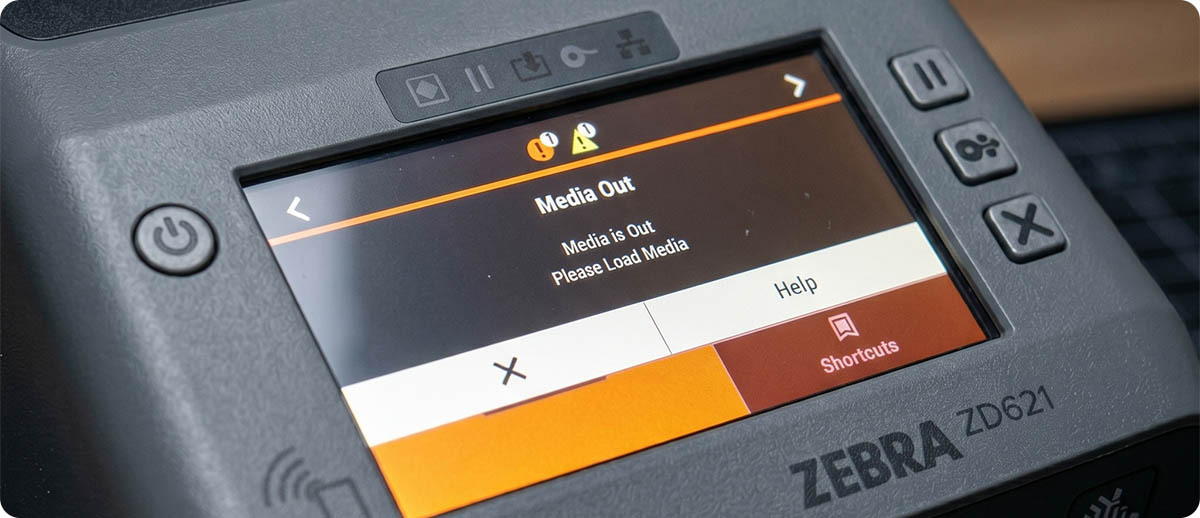
ZD421 and ZD621 Status Light Patterns
The ZD421 and ZD621 have indicator lights on their control panels including STATUS, SUPPLIES, and DATA. Ethernet and Wi-Fi equipped models also have a NETWORK indicator that shows connectivity status. The patterns below cover the STATUS, SUPPLIES, and DATA indicators, which govern the most common operating conditions and error states. The color (green, yellow, or red) and the flash pattern (solid, slow flash, fast flash, or alternating) of these lights communicate the printer's current condition. Reading them in combination gives you a complete picture of what the printer is experiencing.
What does a solid green STATUS light mean on a ZD421 or ZD621?
Solid green STATUS means the printer is ready and in normal operating condition. No action required. If the printer is not printing despite a solid green STATUS light, the issue is in the print job source, the data connection, or the application sending the job rather than in the printer itself.
What does a solid yellow STATUS light mean on a ZD421 or ZD621?
Solid yellow STATUS means the printer is paused. An operator pressed the Pause button, or the printer received a pause command. Press the Pause button once to resume printing. If the printer pauses immediately after resuming without printing, there may be an uncleared error condition behind the pause.
What does a flashing yellow STATUS light mean on a ZD421 or ZD621?
Flashing yellow STATUS means the printer is receiving data. This is normal during active print jobs. If the STATUS light stays flashing yellow for an extended period without the printer producing output, the printer may be receiving a malformed or incomplete print job. Cancel the job from the print queue, verify the label format is valid, and resend.
What does a flashing red STATUS light mean on a ZD421 or ZD621?
Flashing red STATUS indicates an error condition. Read the SUPPLIES and DATA lights alongside the STATUS light to identify the specific error. Flashing red STATUS combined with solid red SUPPLIES is the most common pattern and indicates a media-out or ribbon-out condition. The resolution steps for each are covered in the error sections below.
What does a solid red SUPPLIES light mean on a ZD421 or ZD621?
Solid red SUPPLIES paired with flashing red STATUS means the printer has detected a media-out condition — the label roll is empty or the sensor cannot detect media. Load a new label roll, close the printer, and press the Feed button to resume. If the error persists with media loaded, the sensor may need calibration or cleaning. See the Media Out section below for the full resolution sequence.
What does a flashing yellow SUPPLIES light mean on a ZD421 or ZD621?
Flashing yellow SUPPLIES paired with a solid green STATUS is a low-media warning. The printer has detected that the label roll is nearing its end. Printing continues normally — the STATUS light stays green because no error condition exists yet. Replace the roll soon to avoid an unexpected media-out stop during a print run. On genuine Zebra labels, the end-of-roll indicator triggers this warning at a consistent point. On non-Zebra label stock, the warning timing may vary.
What does the DATA light indicate on a ZD421 or ZD621?
Solid yellow DATA means data is stored in the printer buffer waiting to print. The printer has received a job but has not yet printed it, typically because it is paused or in an error state. Clear the error or unpause the printer and the buffered job will print. Flashing yellow DATA means the printer is actively receiving data from the host. If the DATA light is off and the printer is not responding to print jobs, verify the data connection — USB cable, Ethernet connection, or Bluetooth pairing — before checking any other setting.
ZD421 / ZD621 Light Pattern Quick Reference
| STATUS | SUPPLIES | Meaning | Action |
|---|---|---|---|
| Solid green | Off | Ready | None |
| Solid yellow | Off | Paused | Press Pause to resume |
| Flashing yellow | Off | Receiving data | Normal — wait for print job |
| Flashing red | Solid red | Media out or ribbon out | Load media or ribbon, calibrate |
| Solid green | Flashing yellow | Media low warning (printing continues) | Replace roll soon |
| Flashing red | Flashing red | Critical error or head open | Check printhead latch, see error sections below |
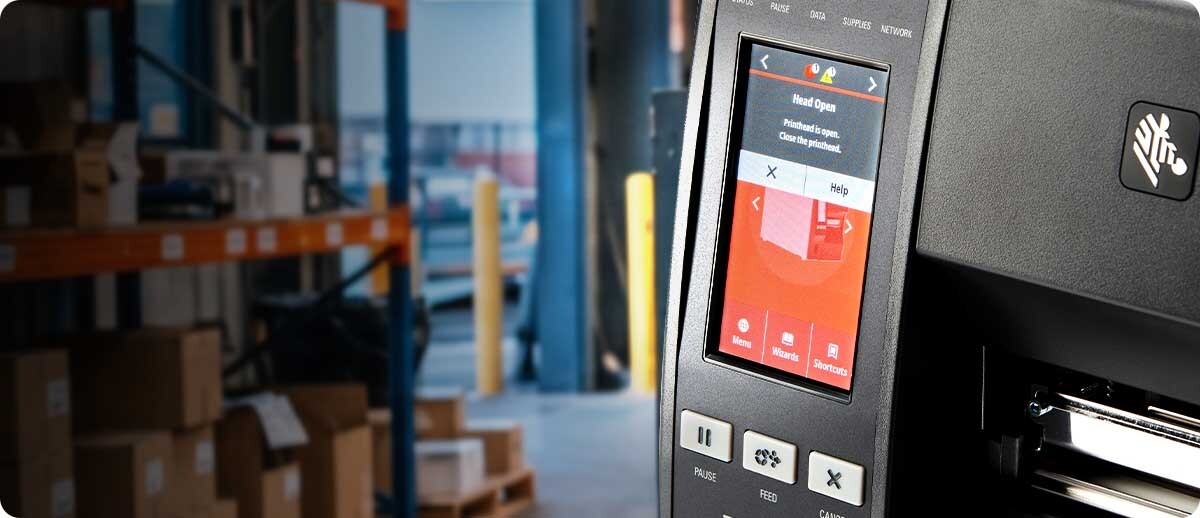
ZT231, ZT411, ZT421, and ZT610 Touchscreen Error Messages
Industrial ZT-series printers display human-readable error messages on the color touchscreen alongside a status icon. The Home screen shows the current printer status. When an error occurs, a banner or alert appears at the top of the display identifying the error condition. The message is specific and does not require decoding a light pattern — but the resolution steps are not always obvious from the message alone.
What does MEDIA OUT mean on a Zebra ZT411, ZT231, or ZT610?
MEDIA OUT is the most common error on any Zebra printer and the most frequently misdiagnosed. It means the printer cannot detect media in the print path. The most obvious cause is an empty label roll, but MEDIA OUT also appears on fully loaded printers when any of the following conditions are present.
The media sensor is not positioned correctly for the label being used. The movable media sensor must be aligned with the label gap for gap-sensing media, or positioned over the black mark for black-mark media. If the sensor is positioned over the printed area of the label rather than the gap, it reads no gap and reports Media Out.
The Media Type setting in the printer does not match the actual media loaded. If the printer is set to Thermal Transfer but direct thermal media is loaded with no ribbon, or if it is set to Gap sensing but black-mark media is loaded, the printer cannot find the expected signal and reports Media Out.
The media sensor needs calibration. Stale calibration data from a previous media type can cause the sensor thresholds to be set incorrectly for the current label stock. Running a Full Calibrate from the Tools menu resolves this in most cases.
The media sensor surface is dirty. Adhesive residue, paper dust, or debris on the sensor face reduces its ability to detect label gaps accurately. Clean the sensor with a dry cotton swab and run calibration again.
Resolution sequence for MEDIA OUT with media loaded: Open the printer and verify the media is threaded correctly through the print path. Check that the sensor position matches the label gap location. Verify the Media Type setting (Home, Settings, Print, Media Type). Clean the sensor. Run Full Calibrate (Home, Tools, Print Quality, Calibrate). If the error clears, the issue was calibration or sensor position. If it persists after all these steps, the sensor may have failed and the printer requires service.
What does RIBBON OUT mean on a Zebra ZT411, ZT231, or ZT610?
RIBBON OUT appears in thermal transfer mode when the printer cannot detect a ribbon in the print path. Genuine Zebra thermal transfer ribbons have a reflective silver trailer at the end of the roll. When the printer detects this trailer, it triggers the Ribbon Out error to stop printing before the ribbon runs out completely. The correct response to a genuine Ribbon Out is to replace the ribbon roll.
RIBBON OUT also appears in three other common situations. If the printer is set to Thermal Transfer mode but no ribbon is loaded, it reports Ribbon Out immediately. Load the ribbon or change the print mode to Direct Thermal if no ribbon is being used. If the ribbon is loaded but not threaded correctly through the print path, the ribbon sensor cannot detect it and reports Ribbon Out. Open the printer, verify the ribbon path runs from the supply spindle under the printhead to the take-up spindle, and check for any slack or misalignment. If third-party ribbon without a reflective trailer is being used, the printer may not detect the end-of-ribbon signal correctly and may report Ribbon Out unexpectedly.
Resolution sequence for RIBBON OUT with ribbon loaded: Open the printer and verify the ribbon is threaded correctly. Check that the ribbon supply spindle and take-up spindle are turning freely. Verify the printer is set to Thermal Transfer in the media settings. Close the printer and press Pause to resume. If the error persists with a correctly loaded ribbon, run a ribbon sensor calibration from the Tools menu or contact your supplier.
What does HEAD OPEN mean on a Zebra ZT411 or ZT610?
HEAD OPEN means the printer's printhead assembly is not fully closed and latched. The printer will not print in this state because the printhead must contact the media and platen roller to function. The most common cause is that the printhead latch was not closed completely after loading media or ribbon. Press the latch firmly until it clicks into the locked position and the HEAD OPEN error clears.
If HEAD OPEN persists after the latch appears fully closed, the latch sensor may be the issue rather than the latch itself. On ZT-series industrial printers, the latch sensor is a small contact switch that tells the printer whether the head assembly is in the closed position. Debris, wear, or a damaged sensor can cause it to report HEAD OPEN even when the head is physically closed. Inspect the latch mechanism and the sensor contact point for debris or damage. If the latch mechanism is clean and undamaged but the error persists, the sensor likely needs replacement.
What does HEAD COLD or HEAD HOT mean on a Zebra ZT411 or ZT610?
HEAD COLD means the printhead temperature is below the minimum operating temperature. HEAD HOT means the printhead temperature exceeds the maximum safe operating temperature. Both errors suspend printing to protect the printhead and the print quality.
HEAD COLD most commonly occurs when a printer is powered on in a cold environment — a warehouse that has been unheated overnight or a printer moved from outdoor cold storage to a print station. Allow the printer to warm up to its operating temperature range before attempting to print. Do not force printing during HEAD COLD as it may damage the printhead. Most Zebra industrial printers reach operating temperature within 5 to 10 minutes of power-on in normal ambient conditions.
HEAD HOT occurs after extended high-volume printing, in high-ambient-temperature environments, or when the darkness setting is significantly higher than necessary. If HEAD HOT appears, allow the printer to cool with the cover open for 5 to 10 minutes before resuming. If HEAD HOT appears frequently, the darkness setting may be higher than needed for the current ribbon and media combination. Reduce darkness to the minimum effective level and run a test label. Running at lower darkness reduces heat generation per print cycle and extends time between HEAD HOT events.
What does PRINTHEAD FAULT mean on a Zebra ZT411 or ZT610?
PRINTHEAD FAULT indicates a hardware problem with the printhead or its connection to the printer's mainboard. Before assuming printhead failure, try reseating the printhead connector. Power the printer off completely, open the printhead assembly, disconnect and reconnect the printhead data cable firmly, close the assembly, and power on. If the fault clears, a loose connector was the cause.
If PRINTHEAD FAULT persists after a connector reseat and a power cycle, the printhead has a hardware failure and needs replacement. PRINTHEAD FAULT that appears after a long service life at high volume, or after a known impact event, indicates a failed heating element array or damaged printhead circuit. See the ZPS printhead replacement guide for the correct printhead part number for your specific printer model and DPI configuration.
What does CUTTER FAULT mean on a Zebra ZT411 or ZT610?
CUTTER FAULT indicates the cutter mechanism has jammed or failed to complete a cut cycle. The most common cause is a piece of label or liner caught in the cutter mechanism. Power the printer off before clearing any cutter jam to avoid a cutting injury. Open the printer, locate the cutter, and carefully remove any media debris using tweezers or a soft brush without touching the cutter blade directly. Close the printer, power on, and test the cutter by running a print job. If CUTTER FAULT reappears immediately after clearing the jam, the cutter motor or mechanism may need service or replacement.
What does OUT OF MEMORY mean on a Zebra ZT411 or ZT610?
OUT OF MEMORY means the label format being sent to the printer is too complex for the available printer memory. This occurs most often with label formats that contain large graphic elements, embedded fonts, or complex object arrangements that exceed the printer's processing capacity. Solutions include simplifying the label format, reducing the size or resolution of embedded graphics, or storing frequently used graphics and fonts directly in printer memory rather than sending them with each print job. If the label format cannot be simplified, a firmware update may improve memory management, or the printer model may need to be evaluated against the complexity of the label requirements.
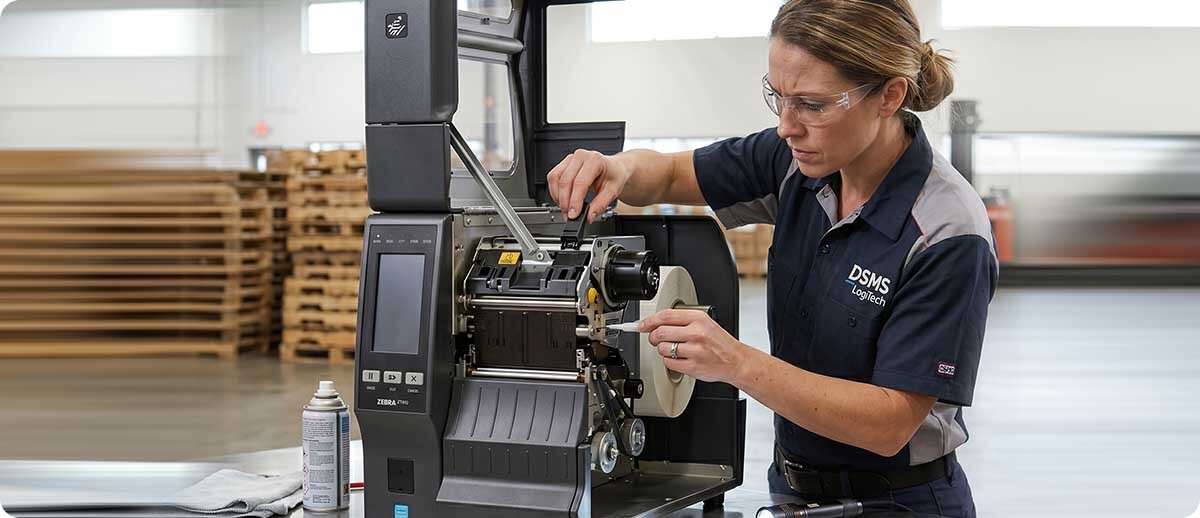
The Master Troubleshooting Sequence: Before You Call for Service
Before escalating any Zebra printer error to a service call, work through the following sequence in order. The majority of error conditions that appear to require service are resolved by one of these steps.
| Step | Action | Resolves |
|---|---|---|
| 1 | Power cycle the printer — off, wait 10 seconds, on | Clears many transient errors and buffer issues |
| 2 | Open and close the printhead latch firmly | HEAD OPEN errors from incomplete latching |
| 3 | Verify media is loaded correctly and the roll is not empty | MEDIA OUT from empty roll or misloaded media |
| 4 | Verify ribbon is loaded correctly (thermal transfer only) | RIBBON OUT from empty roll or misloaded ribbon |
| 5 | Run media calibration — SmartCal (ZD) or Full Calibrate (ZT) | MEDIA OUT from stale calibration, feeding problems |
| 6 | Clean the printhead and media sensor with IPA wipe | Print quality errors, false MEDIA OUT from dirty sensor |
| 7 | Verify Media Type setting matches actual media loaded | MEDIA OUT or RIBBON OUT from settings mismatch |
| 8 | Reseat the printhead data connector | PRINTHEAD FAULT from loose connector |
Frequently Asked Questions: Zebra Printer Errors
My Zebra ZD421 shows all lights off. What does that mean?
All lights off on a ZD421 means the printer is not receiving power, is powered off, or has experienced a power supply failure. Verify the power cable is seated firmly at both the printer and the wall outlet. Try a different outlet to rule out a power supply issue at the outlet. If the printer still shows no lights with a confirmed-good power connection, the power supply or the printer's internal power circuit may have failed. Check that the power switch on the printer side is in the on position — it is sometimes bumped to off accidentally during media changes.
My Zebra ZT411 shows MEDIA OUT but the label roll is clearly loaded. Why?
This is the most common Zebra industrial printer support call. MEDIA OUT with media visibly loaded almost always traces back to one of four causes: the media sensor is not positioned over the label gap, the Media Type setting does not match the actual media, the sensor calibration is stale from a previous media type, or the sensor surface is dirty. Work through the resolution sequence in the MEDIA OUT section above — in approximately 90 percent of cases, running a Full Calibrate resolves this error without any hardware replacement.
How do I clear an error on a Zebra ZT411 after fixing the cause?
On ZT-series printers, most errors clear automatically when the cause is resolved and the printer detects the corrected condition — for example, closing the printhead after loading media clears HEAD OPEN, and loading a new roll clears MEDIA OUT. If the error banner remains on the touchscreen after resolving the cause, press the Pause button to clear the error state and resume printing. If the error reappears immediately, the cause has not been fully resolved and the troubleshooting sequence should continue.
Can I reset a Zebra printer to factory defaults to clear a persistent error?
A factory reset clears all stored printer settings and returns the printer to default configuration. On ZD-series printers, a factory reset is performed by pressing and holding specific button combinations during power-on. On ZT-series printers, the reset is accessible through the touchscreen menu under Tools. A factory reset resolves errors that are caused by corrupted settings rather than hardware problems, but it also clears all custom settings including calibration, darkness, media type, and connectivity configuration — meaning the printer will need to be reconfigured before production use. A factory reset followed by a media calibration and darkness calibration is often the fastest path to resolving a stubborn persistent error before escalating to a service call.
My Zebra ZD621 prints fine but the DATA light stays on. Is that a problem?
A solid yellow DATA light means there is data in the printer buffer that has not yet been printed. If the printer is printing normally and the DATA light goes off after the job completes, this is normal behavior and not a problem. If the DATA light stays solid yellow after the print job appears to have completed and the printer is no longer printing, there may be residual data in the buffer from an incomplete print job. Cancel the print queue from the sending workstation and the DATA light should clear. If the DATA light stays on even with no jobs in the queue, power cycling the printer clears the buffer.
If you have worked through the troubleshooting sequence and the error persists, or if the error you are seeing is not covered in this guide, our team can help you diagnose the specific condition. We carry the ZPS Store's full range of Zebra replacement parts including printheads, platen rollers, and sensors for the ZD421, ZD621, ZT231, ZT411, and ZT610. Fill out the form below and let us help you identify the right fix before ordering any parts.